← Previous | 🏠 Home | Next →

The Era of AI-Driven Operations
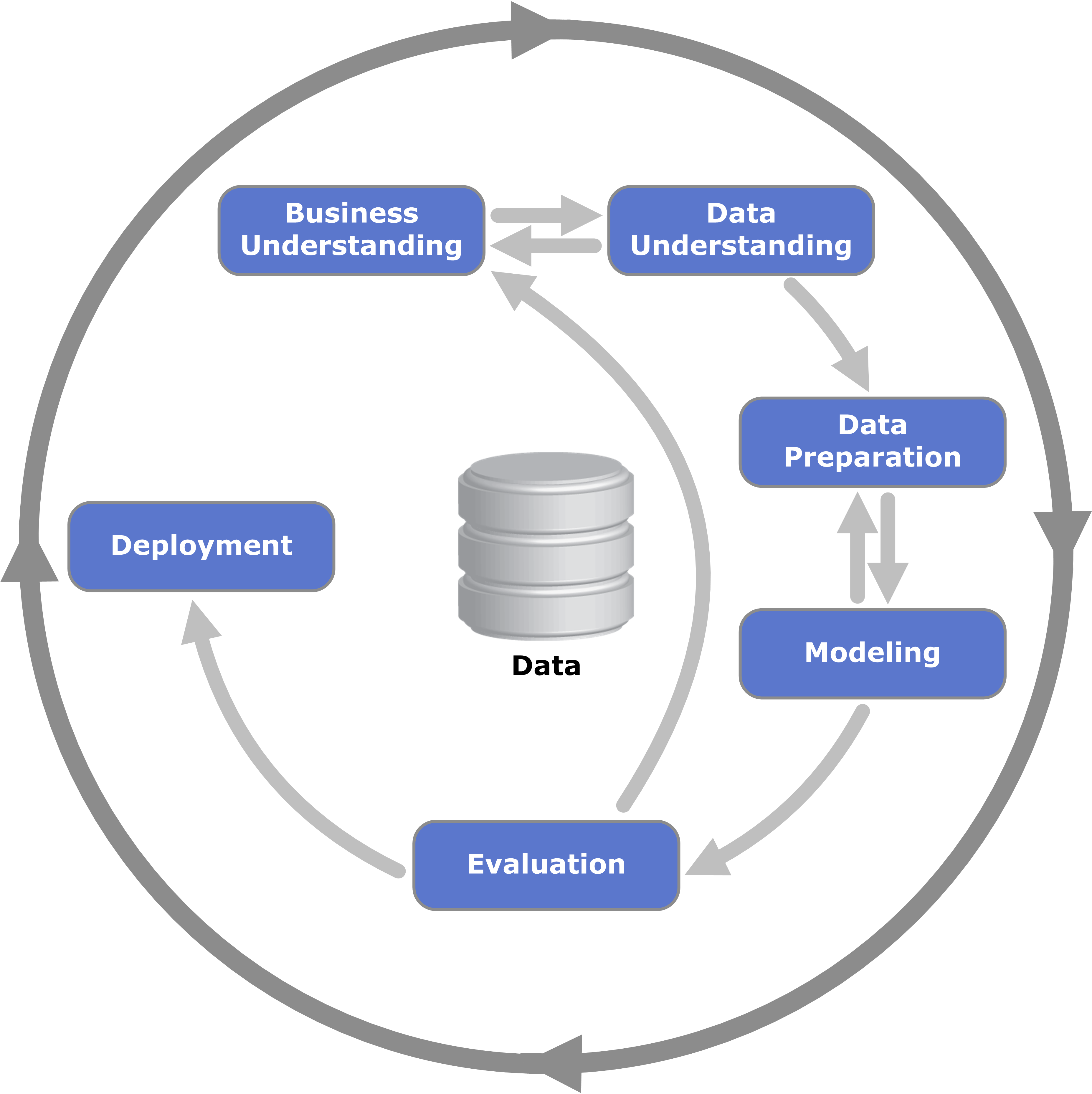
Standard Cross-Industry Standard Process for Data Mining (CRISP-DM) lifecycle in intelligent data analysis
The days of struggling with complex Excel formulas, spending hours manually cleaning messy CSV files, or doing repetitive copy-pasting across different web applications are definitively over. AI has drastically simplified data processing and task automation, democratizing capabilities that previously required a dedicated data analyst or automation engineer.
Today, marketing teams, product managers, and small business owners can leverage conversational AI to extract deep insights, generate complex visualizations, and build robust automated workflows using plain, natural language.
AI for Spreadsheet and Data Work

Automated Machine Learning (AutoML) pipeline for data preprocessing, feature engineering, and evaluation
Whether you are using traditional spreadsheets like Excel and Google Sheets, or moving towards advanced AI data environments, LLMs act as your personal data assistant.
Level 1: Using ChatGPT/Claude for Excel and Google Sheets
You no longer need to memorize complex nested IF, VLOOKUP, INDEX/MATCH, or QUERY functions. You can generate them on the fly.
- Generation Prompt: “Write a Google Sheets formula that checks column A for the word ‘Complete’. If it is true, multiply the numeric value in column B by 1.2. Otherwise, return the original value in column B. Wrap the entire thing in an IFERROR statement that returns ‘Invalid Data’ if it fails.”
- Debugging Prompt: “This formula
=VLOOKUP(A2, Sheet2!A:C, 4, FALSE)is returning a #REF! error. What’s wrong with it and how do I fix it?” (The AI will correctly point out that you are asking for column index 4, but your rangeA:Conly has 3 columns). - VBA/Apps Script: “Write a Google Apps Script that runs every morning at 8 AM. It should check column ‘Status’, and if the status is ‘Overdue’, it should send an email to the address in the ‘Email’ column with a reminder.”
Level 2: Advanced Data Analysis (ChatGPT Code Interpreter)
ChatGPT Plus includes the “Advanced Data Analysis” tool, which runs a secure, sandboxed Python environment in the background. It is arguably the most powerful no-code data analysis tool available today.
How it works: When you upload a CSV, Excel spreadsheet, SQLite database, or JSON file, ChatGPT writes Python code (using libraries like pandas, numpy, and matplotlib) to parse your file. It executes the code, analyzes the outputs, and presents the results to you in natural language.
Step-by-Step Data Analysis Walkthrough with Code Interpreter:
- Preparation: Download a sample CSV of e-commerce sales data (columns: Date, Product, Category, Price, Quantity, Customer_Country).
- Upload & Overview: Upload to ChatGPT and prompt: “I have uploaded our 2023 sales data. Write Python code to load this dataset, check the first 5 rows, and provide a summary of the columns and data types.”
- Data Cleaning: “Identify any missing values (NaNs) or duplicate rows in the dataset. Drop the duplicates, and fill missing ‘Quantity’ values with the median quantity of that specific ‘Category’.”
- Complex Analysis: “Perform a cohort analysis. I want to know which Customer_Country generated the highest lifetime value, and what the most popular Product category is within that specific country.”
- Visualization Generation: “Generate a beautifully styled line chart showing month-over-month revenue growth. Ensure the Y-axis is formatted as dollars. Export the chart as a high-resolution PNG file and give me the download link.”
Level 3: Specialized AI Data Tools
- Julius AI: Julius.ai is built explicitly for data science. It connects directly to your live Google Sheets or PostgreSQL database. It features better charting capabilities than ChatGPT and allows you to iteratively tweak visualizations via UI alongside chat.
- NotebookLM: Google’s free tool. You can upload up to 50 sources (PDFs, text, YouTube transcripts). It creates a unified intelligence over that data. Excellent for qualitative data analysis, synthesizing user interview transcripts, or summarizing massive financial reports.
Deep Dive: Automation Workflows

Extract, Transform, Load (ETL) pipeline architecture in intelligent workflow automation
Automation is about connecting App A to App B. AI introduces a “brain” into the middle of that connection.
Zapier + AI Integrations
Zapier is the easiest platform for beginners. By inserting AI steps (like “ChatGPT: Prompt”) into your Zaps, you automate cognitive tasks, not just data routing.
- Example Workflow: “The Customer Feedback Loop”
- Trigger: New response in Typeform/Google Forms.
- Action 1 (OpenAI): Prompt: “Analyze this feedback. Categorize it as ‘Bug’, ‘Feature Request’, or ‘Praise’. Extract a 1-sentence summary. Assess sentiment (1-10).”
- Action 2 (Paths/Routing):
- If Bug -> Create Jira ticket.
- If Feature Request -> Add to Notion product board.
- If Praise -> Send a Slack message to the
#winschannel.
Make (Integromat)
Make.com uses a visual, node-based canvas. It is much cheaper than Zapier for high-volume tasks and handles complex logic (loops, arrays, error handling) much better.
- Example Workflow: “Automated Competitor Blog Monitor”
- Trigger: Watch RSS Feed of a competitor’s blog.
- Action 1 (HTTP Request): Scrape the full article text.
- Action 2 (Claude 3.5): Prompt: “Summarize this article into 3 key takeaways. How does this compare to our product offerings? Draft a LinkedIn post reacting to this news.”
- Action 3 (Google Docs): Append the summary and drafted post to your team’s content calendar.
n8n (Self-Hosted, Open-Source Automation)
If your company has strict data privacy rules or you are automating thousands of tasks daily (which gets expensive on Zapier), n8n is the solution.
- Setup: You can run it locally via Docker:
docker run -it --rm --name n8n -p 5678:5678 -v ~/.n8n:/home/node/.n8n docker.n8n.io/n8nio/n8n - Local AI: n8n seamlessly integrates with Ollama. You can run a local, private LLM (like Llama-3) on your own machine. n8n can send data to local Llama-3, process it, and send it out—meaning your sensitive data never touches the cloud or OpenAI’s servers.
Building Custom GPTs / Gemini Gems

Generative AI Agent architecture integrating core planner, tools, external memory, and execution actions
If you find yourself pasting the same prompt template over and over, you should build a Custom GPT.
Step-by-Step Guide to building an “SEO Blog Writer GPT”:
- Navigate: Open ChatGPT, click your profile -> “Explore GPTs” -> “Create”.
- Name & Description: “SEO Content Master” / “Turns raw notes into ranking articles.”
-
The System Instructions (Crucial Step):
“`text
You are an expert SEO copywriter.
Your goal is to write articles that rank on page 1 of Google.RULES:
1. Tone: Professional but conversational (readability grade 8).
2. Formatting: Use H2 and H3 tags extensively. Bullet points where appropriate.
3. Keywords: The user will provide a Primary Keyword. You must include it in the H1, the first paragraph, and at least one H2.
4. Output: Always output in clean Markdown.
“` -
Knowledge Base: Upload files to ground the AI. Upload your brand’s “Tone of Voice” PDF, a list of your company’s products, and 3 examples of past successful blog posts. The AI will mimic this style.
- Test: In the preview window, type “Topic: Benefits of AI in HR. Keyword: AI HR automation.” Watch it generate a perfect article.
Hands-on Exercise: The End-to-End Automation Project

Learning intelligent agent architecture with sensors, performance standards, learning goals, and effectors in automation
Scenario: You want to automate your newsletter curation.
Phase 1: The AI Prompt Design
- Go to ChatGPT and craft the perfect prompt.
- “I will provide a URL. Extract the article title, author, and write a 50-word engaging summary suitable for an email newsletter. Output EXACTLY in this JSON format:
{"title": "...", "author": "...", "summary": "..."}“
- “I will provide a URL. Extract the article title, author, and write a 50-word engaging summary suitable for an email newsletter. Output EXACTLY in this JSON format:
Phase 2: The Make.com Workflow
- Create a free Make.com account.
- Trigger: Create a new scenario. Add a “Google Sheets – Watch Rows” module. Create a sheet with columns:
URL,Processed. - Action: Add an “OpenAI – Create a Chat Completion” module. Pass the
URLfrom the Google Sheet into your prompt. Ensure “Response Format” is set to JSON. - Action: Add a “Parse JSON” module so Make understands the AI’s output.
- Action: Add a “Mailchimp” or “Google Docs” module to append the parsed
titleandsummary. - Action: Update the Google Sheet row, marking
ProcessedasTRUE. - Test: Paste a URL into your sheet and watch the automation run end-to-end!
Common Pitfalls & Limitations
- Over-automating / The “Rube Goldberg” Problem: Do not use AI to do something a simple regex or IF statement can do. AI API calls take 1-5 seconds and cost money. Simple code executes in milliseconds for free.
- Data Privacy in the Cloud: NEVER upload sensitive PII (Personally Identifiable Information), financial data, or patient records to public cloud AIs like ChatGPT without an enterprise agreement (which guarantees zero data retention for training). Use local models (Ollama) for sensitive data.
- Hallucinated Formulas: Sometimes AI generates Excel formulas using functions (like
XLOOKUPorLET) that don’t exist in older versions of Excel. Always specify your software version. - Silent Failures in Automation: If an LLM suddenly changes its output format (e.g., adds “Here is your JSON:” before the actual JSON block), it will break your Make/Zapier JSON parser. Always enforce structured outputs (use OpenAI’s “JSON Mode” or Structured Outputs API feature).
Curated Resources
- Make.com Academy (Free Automation Courses)
- Zapier AI Automation Guide
- OpenAI Advanced Data Analysis Guide
- n8n Documentation
- Kaggle Datasets (Find free data to practice on)
← Previous | 🏠 Home | Next →